Integrating publication lists into your webpage

You can easily integrate any search result from DORA as a publication lists into your institutional webpage on the websites of Eawag, Empa, PSI or WSL. Doing so, your publication list will stay up-to-date and synchronized with your DORA-listed publications. Integrated publication lists are updated daily.

Background

The Content Management System (CMS) of the Eawag, Empa, PSI and WSL websites "understands" DORA. Any search you do in DORA is reflected in the URL in your browser. Copy and paste this URL into a special "DORA-URL" window in your personal or departmental webpage of your institute (see below for institution-specific details) and the search result will be made available in JSON format that your CMS can format and visualize. Importantly, your search result is not static. Once per day, your publication list created from your DORA search will be updated and synchronized with the respective content in DORA. 

For webadmins: For more complex searches, DORA advanced search and filter options might not give you the options you need to create the required publication list. In this case, you can build the needed URL directly and use it for the DORA-URL window in your CMS. We created a manual that lists all options in more detail

Three easy steps to your publication list

  1. Use the DORA Advanced Search (Eawag, Empa, PSI, WSL) for precise queries, or the browse view (Eawag, Empa, PSI, WSL) to click filter options in the sidebar — filter by year, author, laboratory, beamline, keyword, and more.
  2. Once you have obtained the desired search result in DORA, copy the URL from your browser's address bar. This is the URL you will use in the CMS of your institutional webpage. If the DORA webpage does not allow to create the search result you need, you can create your own "search result URL" with many additional options (download our manual for more details).
  3. Your institutional webpage has a specific "DORA-URL" field (see below how to get there in the CMS of the different institutes). Paste your URL from step 2 into the "DORA-URL" field and save the page. Your publication list will appear on your institutional webpage and update automatically every day.

The "DORA-URL" field per institute

  • On a webpage for which you have editor rights (for example your personal webpage) go to the pencil symbol on the bottom right of the page. Log in with your Eawag credentials. In the publication section you will find the tab "DORA URL" to add search results. General information about editing Eawag webpages can be found in the Eawag intranet.

    Image
    DORA-URL-Field_Eawag
  • under construction

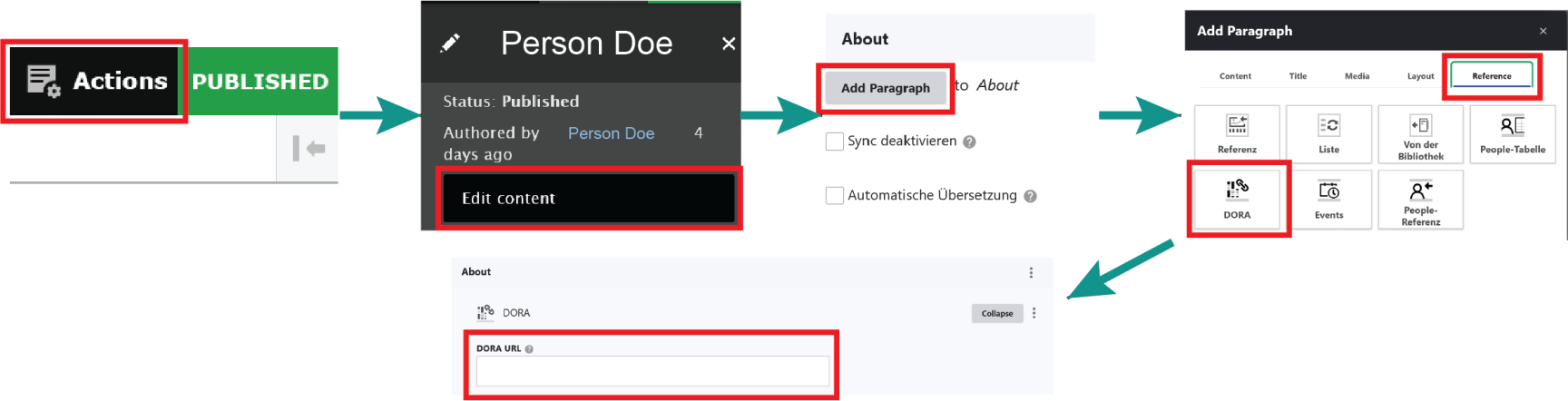
  • Go to a PSI Webpage for which you have editor rights (for example your personal webpage). At the bottom, click on "Editors' login". On the top right of the webpage, you open the sidebar by clicking on "Actions". Afterwards, you follow the steps below and click on the buttons that are highlighted by red boxes. General information about editing PSI webpages can be found in the PSI intranet.

    Image
    DORAPSI_IntegrationPublicationList


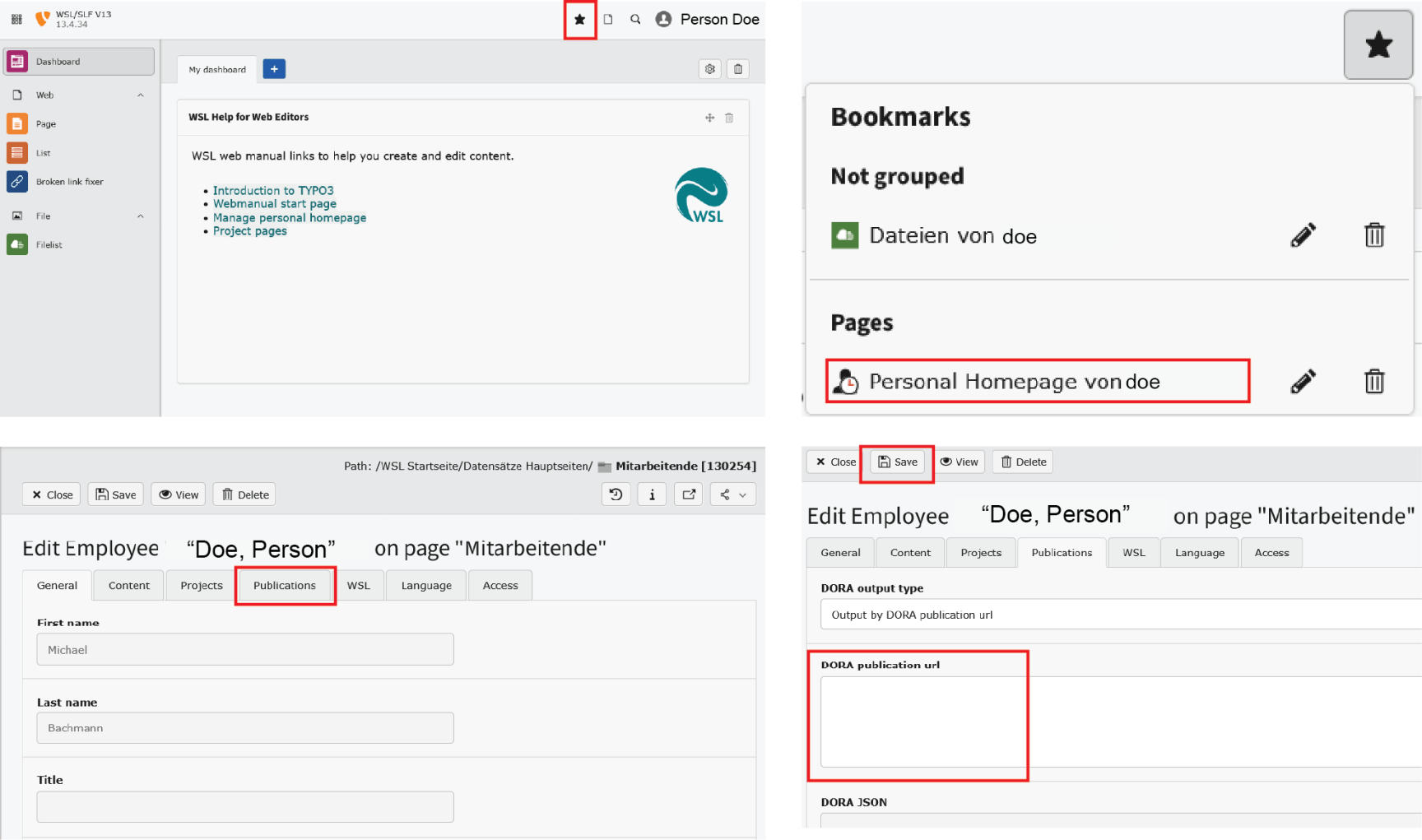
  • Login into the CMS of WSL to edit your personal page (WSL Intranet only). The screenshots below show how you can navigate to the DORA-URL field. Follow the screenshots from left to right and top to bottom and interact with the items in the red boxes. Click Save after adding the DORA-URL in the respective field. More information about editing WSL webpages can be found on the "Manage personal homepage" webpage.

    Image
    DORA-URL_WSL